05. Multi-machine Experiments with Network Control
Syntalos can coordinate recording runs across multiple computers on the same local network. One machine acts as the controller and triggers all others (the listeners) simultaneously, so every machine starts its timer at the same wall-clock moment and data collected by all rigs is automatically aligned in time.
This is useful when, for example, you want to record behavior with cameras on one computer while simultaneously recording neural signals on another, or when you run the same experimental protocol on several rigs in parallel and need to compare data across animals without manual post-hoc alignment.
It also permits interfacing Syntalos with other 3rd-party or custom tools in more complex setups, as long as they implement the same network protocol.
What you need
- Two or more computers on the same local network, each running Syntalos or software that speaks its network protocol.
- Ports 5556 (commands) and 5557 (feedback) open between the machines (no firewall blocking them).
- Clocks synchronized via NTP or PTP on all machines.
Concepts
| Role | What it does |
|---|---|
| Controller | Initiates runs. Sends Prepare / Start / Stop commands to all listeners. |
| Listener | Waits for commands. Starts and stops its own recording in response. |
A single Syntalos instance can be controller only, listener only, or both at once. In the latter case, the final role is determined by whether the user explicitly launches a run on that Syntalos instance (instance becomes controller) or whether the instance receives a PREPARE command first (instance becomes listener).
Step 1 – Configure network settings
Settings that are relevant for network functionality are both Global (①) in the global settings for the Syntalos instance, and project specific in the project settings panel. Open the global settings dialog (Edit → Settings) and go to the General tab for the general settings, and click on the project settings (②) to find the network settings on the right side.
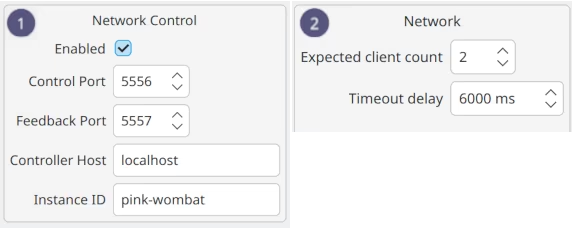
Set the following fields on every machine that will participate:
| Field | Scope | Where to set | What to enter |
|---|---|---|---|
| Network control enabled | Global | All machines | Check the box |
| Instance ID | Global | All machines | A short unique name for this machine (e.g. rig-1, rig-cam) |
| Controller host | Global | Listeners | Hostname or IP address of the controller machine |
| Command port | Global | All machines | Leave at 5556 unless that port is in use |
| Feedback port | Global | All machines | Leave at 5557 unless that port is in use |
| Expected client count | Project | Controller | How many listener machines must confirm Prepare before Start |
| Timeout (ms) | Project | Controller | How long to wait for confirmations (default: 6000 ms) |
Step 2 – Load your project on every machine
Open Syntalos projects on each machine. Each machine records its own data locally – they are not streaming data to each other, only exchanging short control messages!
Step 3 – Enable controller / listener mode

On the controller machine
Click the Network Controller toolbar button ① to toggle it and put this instance in controller mode.
The controller will bind the command and feedback ports and start listening for incoming confirmation messages from listeners.
On every listener machine
Click the Network Listener toolbar button ②.
The listener connects to the controller’s ports. The Run and Temp Run buttons are automatically disabled on listener machines – runs are triggered exclusively by the controller.
Step 4 – Start a run
On the controller machine, click Run (or press the run shortcut) exactly as you would for a normal single-machine recording.
Syntalos will:
- Broadcast a Prepare command to all listeners, including the current subject ID, subject group, experiment ID and run UUID from the controller’s UI.
- Wait for each listener to confirm that all its modules have finished preparing (up to the configured timeout).
- Broadcast a Start command that includes the controller’s exact wall-clock start timestamp.
- Every listener aligns its own master timer to that timestamp so all clocks share a common t = 0.
All machines are now recording in lockstep.
Step 5 – Stop a run
Click Stop on the controller machine. Syntalos broadcasts a Stop command; every listener stops its run, flushes data to disk, and reports back. You can also stop individual listeners manually – their run will end locally and they will send an ACK back to the controller.
EDL metadata from the controller
When a run is triggered remotely, the listener’s EDL manifest includes extra attributes that record the origin of the run:
| Attribute | Value |
|---|---|
remote/project | Project name reported by the controller |
remote/launched_by | Instance ID of the controller machine |
Troubleshooting
- Listener does not receive Prepare
- Check that listener mode is enabled before the controller sends Prepare. Verify there is no firewall blocking port 5556 between the machines.
- Run starts but timestamps differ by more than expected
- Clock synchronization is poor. Check NTP status (
timedatectl timesync-status) or consider setting up PTP for sub-millisecond accuracy. - “Only N of M participants confirmed” error on the controller
- One or more listeners did not send a prepare ACK in time. Check that all listener machines have Syntalos open and listener mode enabled. Increase the ACK timeout in Settings if your machines are slow to prepare.
- Run cannot be restarted after a timeout
- If the controller times out waiting for ACKs, it aborts automatically and re-enables the Run button. Listeners that did not receive a Stop command will time out on their own after 30 seconds and return to idle. Wait for that before starting a new run, or click Stop on any listener that still shows as running.
Custom controllers/listeners
The controlling application or listening application does not have to be Syntalos! You can implement support for the simple network protocol in any application. Check out the netctl-demo Python example for an overview on how to implement this.
The tool can also be helpful for debugging and testing.